
Before you start, have your
- SAIT student email (ending in @edu.sait.ca) and
- email password
TIP - Reset forgotten passwords by following the Forgot Password instructions.
Register for your classes 8–12 weeks before the term begins, even if you’re conditionally accepted.
TIP - Find self-registration opening dates for your term and School/Program at Getting your Class Schedule
Heads up: Registration works differently for Apprentices and English Language Foundations (ELF). ELF students are registered by SAIT staff. Visit their dedicated sites for details.
Unsure which courses to take? Use the Course Catalog to see what's required each term or connect with an Academic Advisor for guidance.
Registration deadlines & policies
- Registration is acknowledgement that you will adhere to SAIT add/drop, withdrawal and refund deadlines and policies.
- Withdrawals after the start of the semester are not eligible for a full refund. No refunds are available after the add/drop deadline.
How to register
The following resources will help
Watch helpful videos
- Important Registration Info: Covers key policies and things to know before registering.
- Step-by-Step Walkthrough: Shows you how to log in to mySAIT and register for your classes.
Prefer to Read?
Follow the step-by-step instructions below for both open and block registration programs.
Step-by-step instructions
Logging In
1. Navigate to mySAIT and select ‘Current SAIT students and employees’ from the menu.
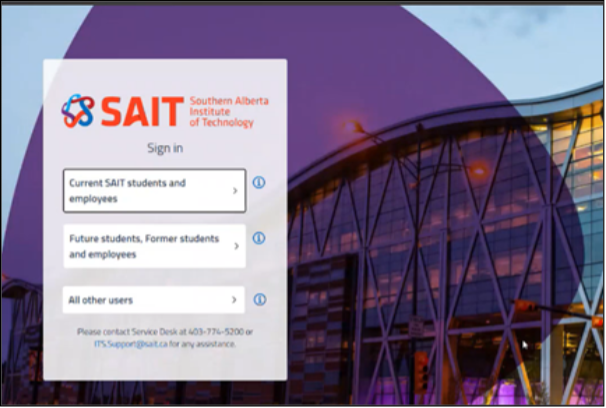
2. Enter your SAIT Student email address (your @edu.sait.ca email).
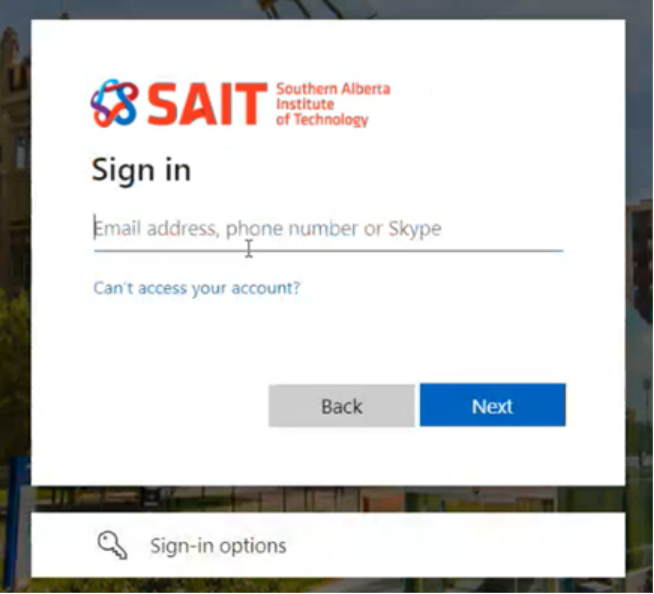
3. Enter the password you use to access your SAIT student email address. If you're logging in for the first time, search your personal inbox for the email subject line "Your SAIT student email address". Remember, you will need to change this after you log in for the first time.
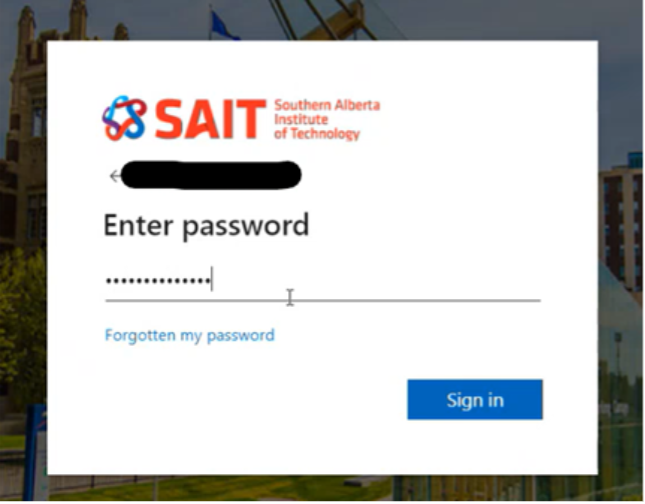
4. Log into mySAIT and in the mySAIT tab select myStudent from the dropdown menu.
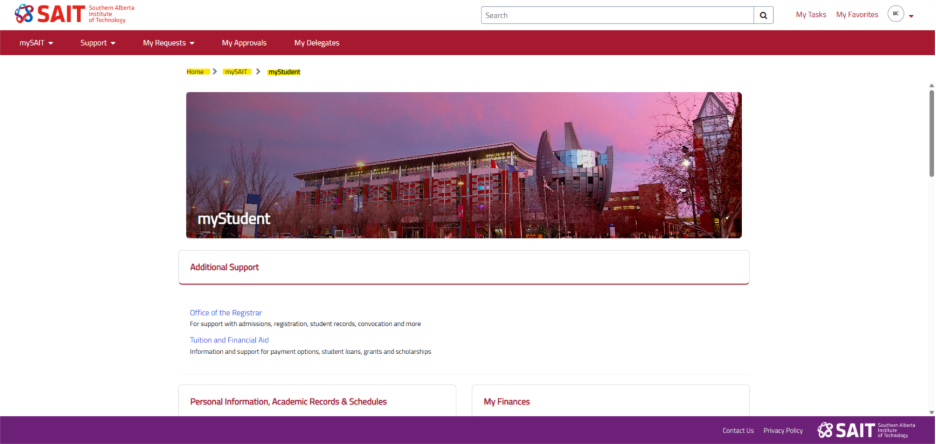
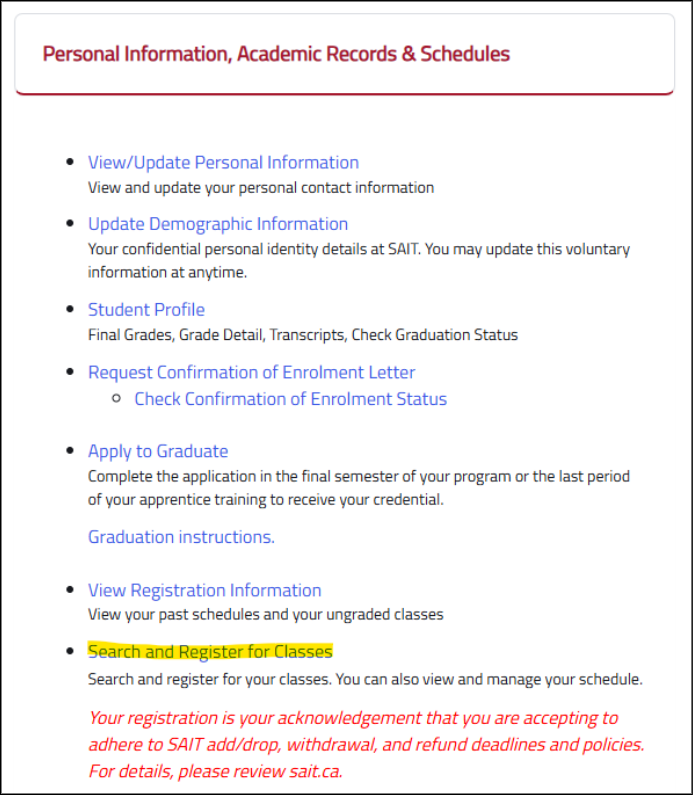
5. In the Personal Information, Academic Records & Schedules section, select "Search and Register for Classes”.
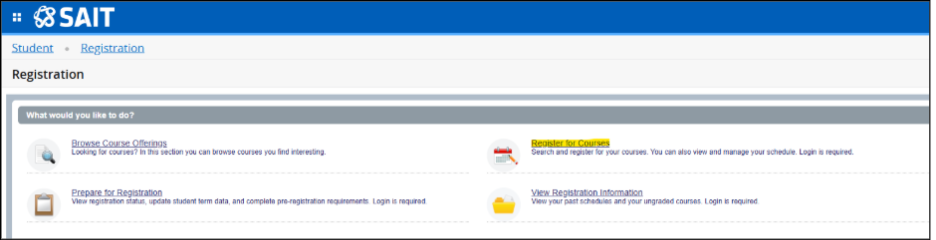
6. Choose Register for courses
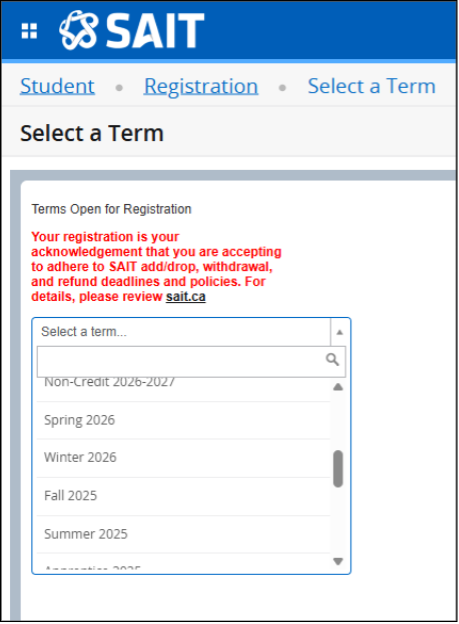
7. Click Select a Term drop-down menu and choose the term in which your classes will occur.
The way you register depends on whether your individual program follows open or block registration rules. You can find which registration type your program falls under in Getting your Class Schedule page. Here are the steps for each registration type.
Open Registration Instructions
1. First semester students in open registration programs will start by selecting the Blocks tab and choosing your block of mandatory orientation and prep course. Select the radio button next to your orientation block then click the "Submit" button on the bottom right.
READ MORE
Review next steps for new students to learn more about these important prep course.
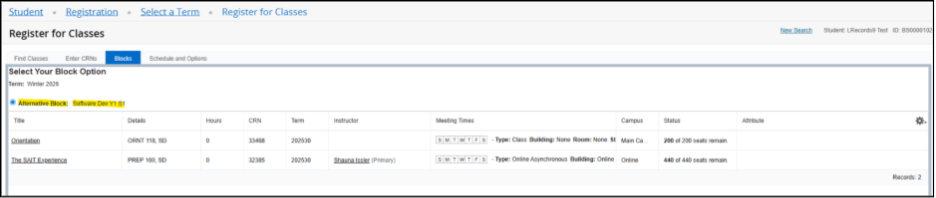
2. Once you have your mandatory block or if you are entering a semester after your first, select the Find Classes or Enter CRNs (Course Reference Number) tab to search for your individual courses.
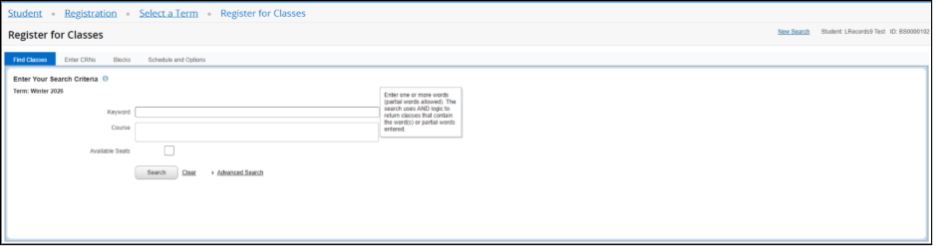
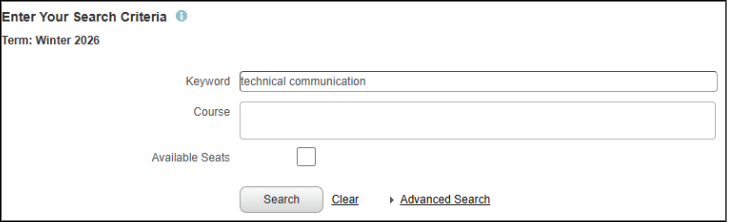
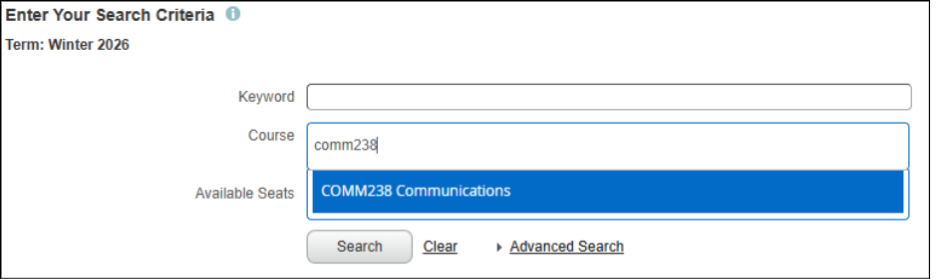
You can type in the course name in the Keyword section, type in the course code in the Course section, or enter the CRN to search.
Search by Keyword:
Search by Course Code:
Search by CRN: 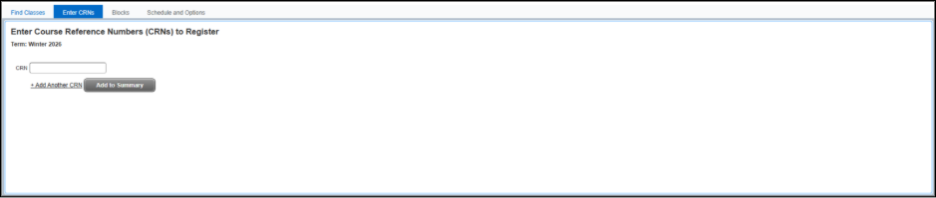
3. Once the available course appears, click the Add button to choose your class.
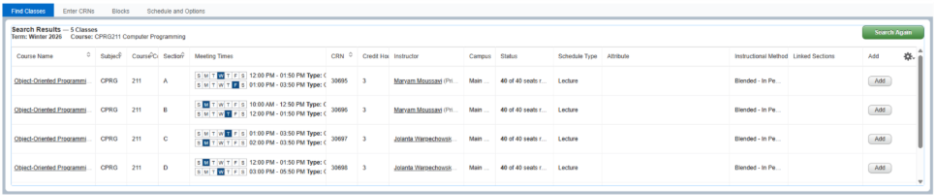
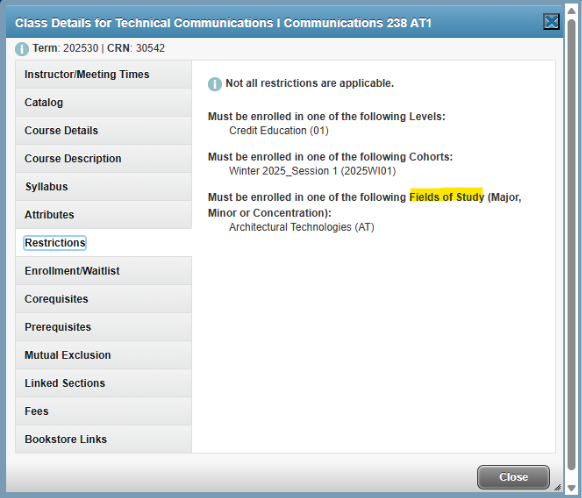
4. For some courses, there may be multiple sections to choose from. Click on the course name and then select Restrictions.
IMPORTANT - You can only select the Fields of Study related to your program. Otherwise, a field of study restriction error will occur.
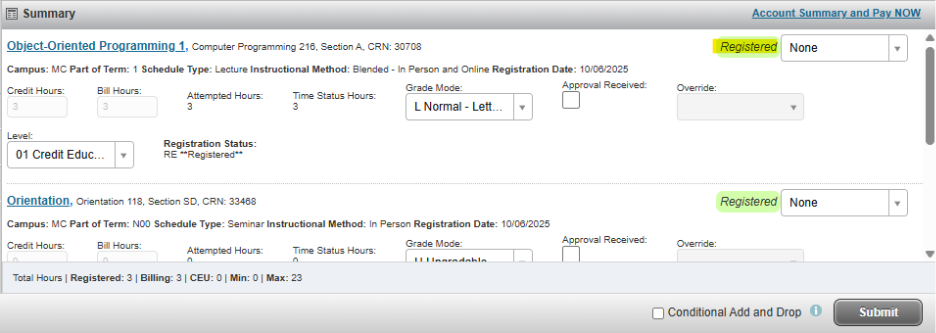
5. Repeat the last three steps until you have added all your required classes, making sure a green Registered icon appears next to each selection.
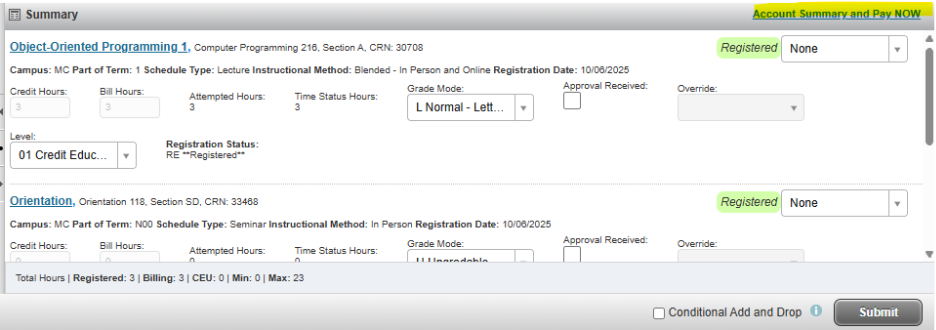
6. Once you have chosen all classes, select Account Summary and Pay NOW to apply the tuition and fees to your student profile.
Making changes to your schedule – Open registration
1. Follow steps 1-4 in the Logging In section above
2. Example below: currently Registered for COMN220
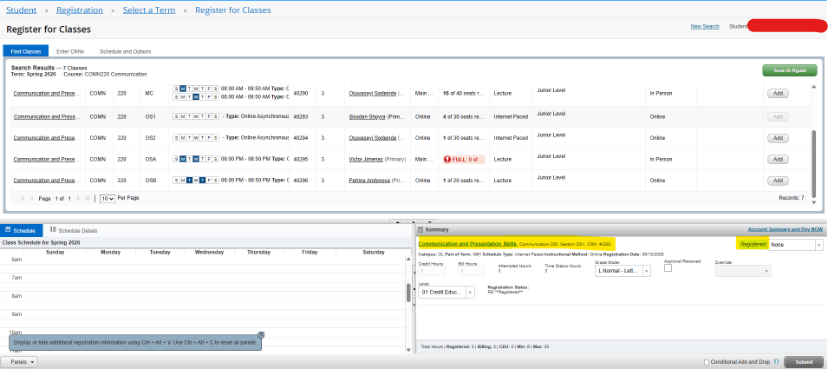
3. Click “add” in another section of COMN220 that you would like to add. Make sure that there is no time conflict. Then, select (DD Drop/Delete) in the dropdown menu in Summary for that section that you would like to drop. Click Submit.
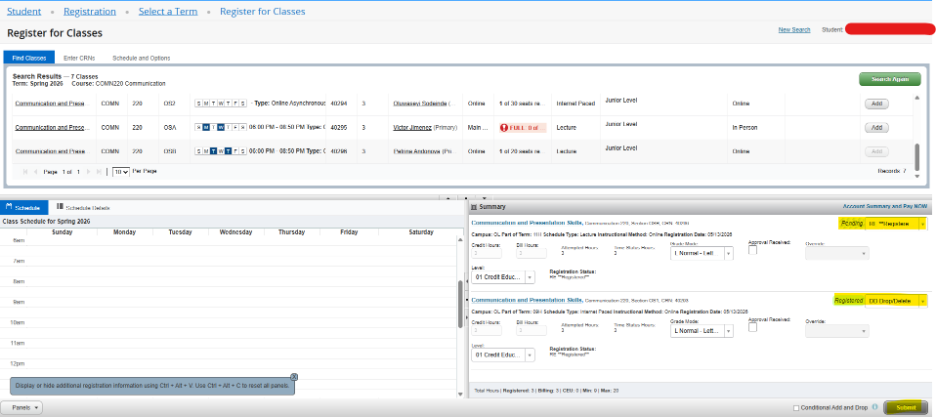
4.The section is now switched. Once you have chosen all classes, select Account Summary and Pay NOW to apply the tuition and fees to your student profile.
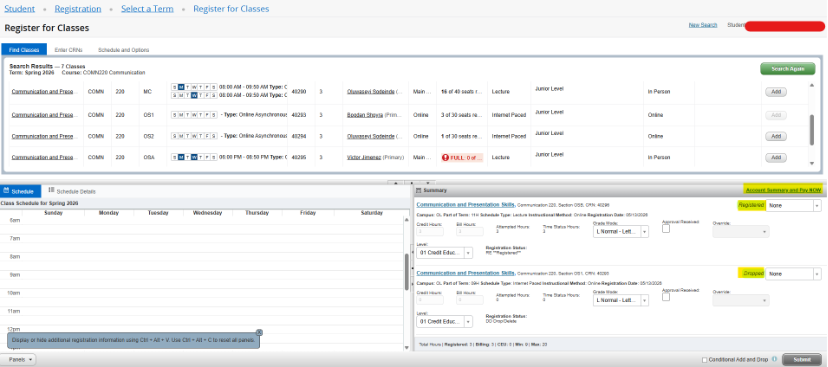
Adding courses
Dropping courses:
6. To Drop a course, go to your Summary and select (DD Drop/Delete) for the course that you would like to drop, then click submit.
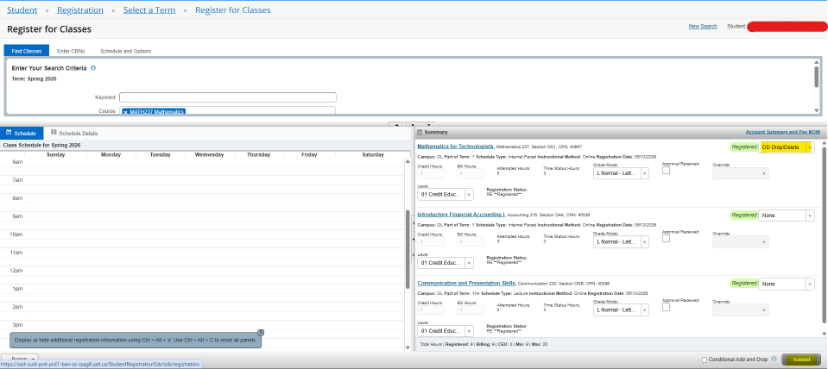
7. The course well then be dropped. Select Account Summary and Pay NOW to apply the tuition and fees to your student profile.
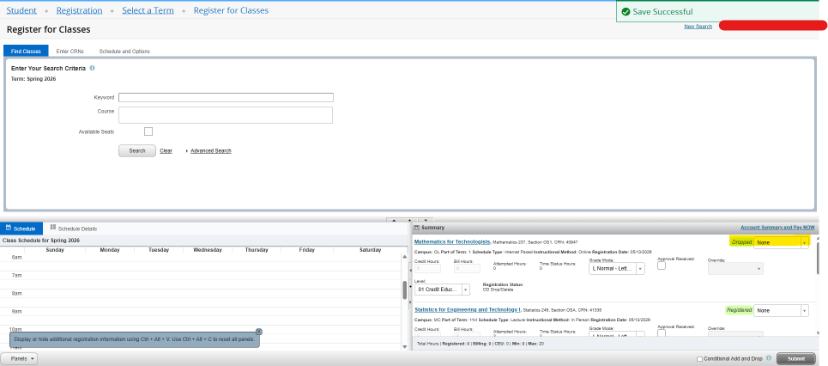
8. It is important that International Students cannot drop below 9 credits to maintain full-time status. Students also cannot drop their last course as this will be considered as a program withdrawal and a program withdrawal form is required.
NEED MORE SUPPORT?
Check out our Common Self-Registration Questions page.
Block registration instructions
1. Select the Blocks tab if your program follows block registration rules or if you're in your first semester of an open registration program.
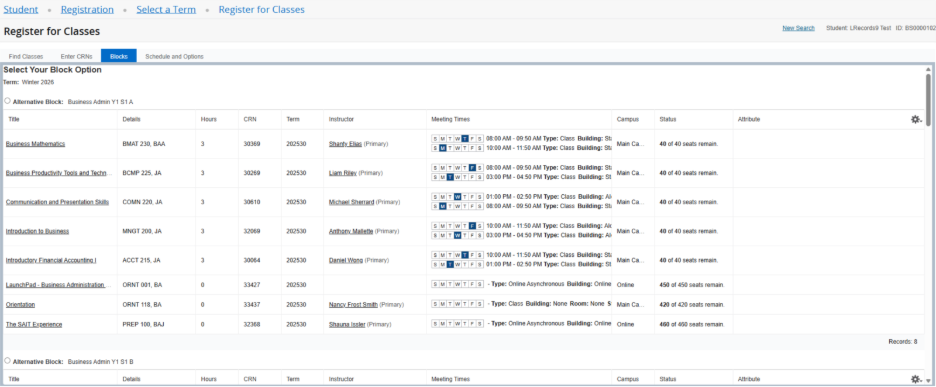
2. Select the radio button next to your chosen block of classes.
IMPORTANT
Make sure there is a green registered icon next to all classes in the block - you will need to speak with your Academic Advisor if any one or more classes in the block are showing as full.
3. Click Submit after choosing your block of classes. This is needed even if there is only one block as this will complete and save your registration.
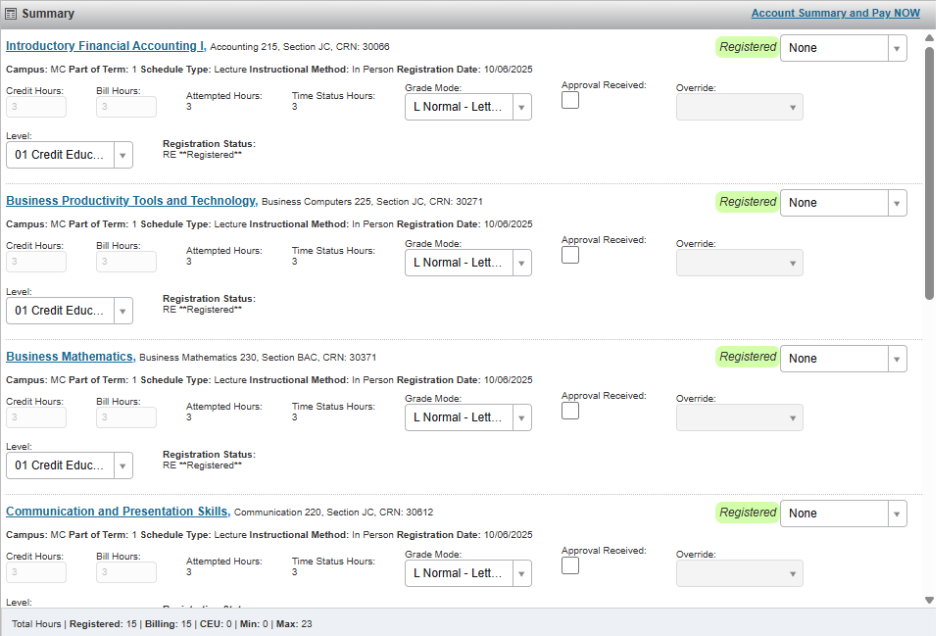
IMPORTANT
Some programs require you to select both a block and individual courses.
Check the course catalog before you register to ensure you’re selecting all required courses. If you're not sure, speak to your Academic Advisor.
4. To complete the registration process, select Account Summary and Pay NOW to apply the tuition and fees to your student profile.
Making changes to your schedule - Block registration
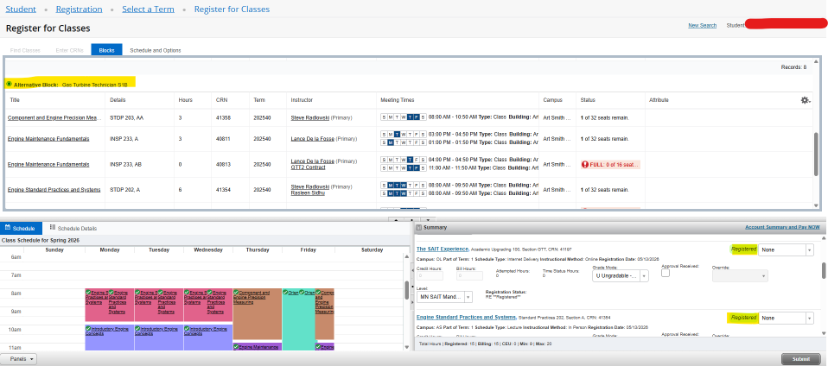
3. Select Radio Button of Block A and then click Submit. The section is now switched.
Select Account Summary and Pay NOW to apply the tuition and fees to your student profile.
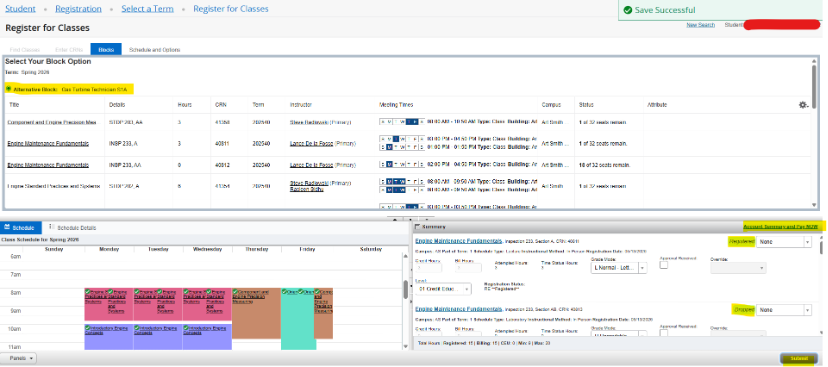
Adding individual courses
4. Follow instructions 2 - 6 in the above section Open Registration Instructions
IMPORTANT
Check your program’s registration type at the Getting your Class Schedule site.
Dropping courses – fully adjustable block
5. Example: Currently registered in Fully Adjustable Block:
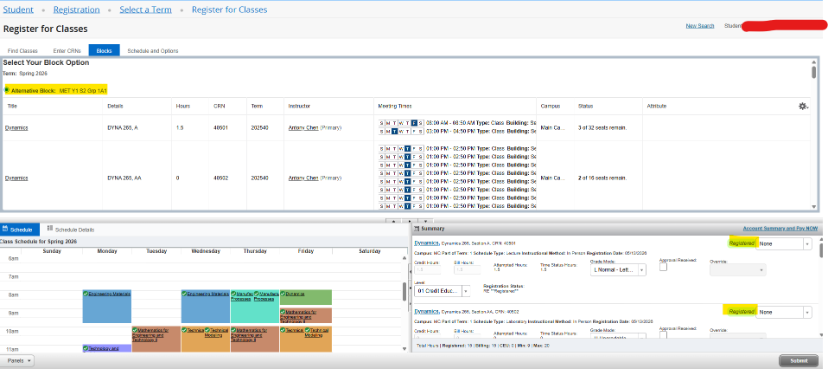
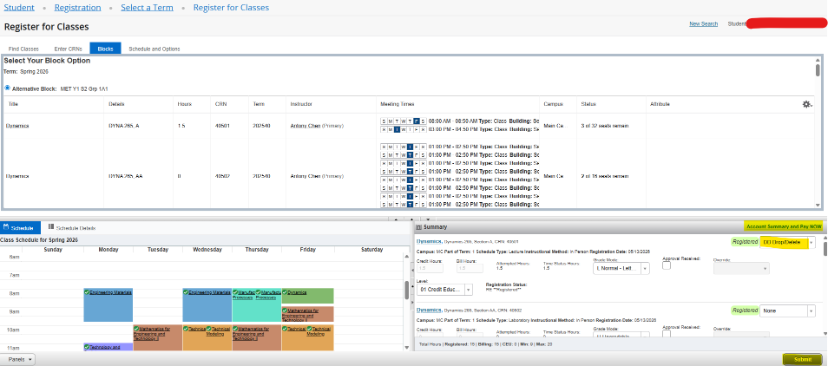
6. Go to your Summary and select(DD Drop/Delete) for the course that you would like to drop, then click sumbit. Course will then be dropped. Select Account Summary and Pay NOW to apply the tuition and fees to your student profile.
Dropping courses – fixed block
7.Speak to your Academic Advisor to request a registration change. The Advisor will fill out an add/drop form on your behalf.